

Next.js Blog (3): Markdown Features
Contents
Notice
This text was originally translated using AI tools.
Introduction#
Now that page transitions are possible, I want to build the blog's appearance by configuring a layout. I designed the basic layout as follows:
- Header: Site logo and navigation bar
- Main: Core content of the page (post list or detailed content)
- Footer: Copyright information and SNS links
Creating the layout or templates themselves is a familiar task, so I expected to finish quickly. However, I wondered, "Since this is a static site, do I have to create every single piece of content as a manual component?"
Upon checking, I found that many blogs using a similar approach utilize Markdown files for maintenance and writing convenience.
Advantages of Using Markdown#
Using Markdown files is said to offer the following benefits:
- Separation of Content: You can manage UI logic and post content separately. I find this aspect very appealing.
- Ease of Writing: You can quickly write formatted text without using separate HTML tags.
- Library Utilization: Libraries that parse Markdown into HTML are already well-distributed.
Implementing Markdown Parsing Logic#
I will implement the process of reading Markdown files stored locally using libraries and converting them into HTML.
1. Installing Libraries
First, install the libraries required for Markdown processing via your package manager.
pnpm install gray-matter remark remark-html2. Writing the Script
Write a function that separates Data (Front-matter) and Body (Content) from the Markdown file and returns them.
// contentRoot: The actual physical path where Markdown files are located
const contentRoot = path.join(process.cwd(), 'contents');

export const getMarkDown = async (id: string) => {
	const fullPath = path.join(contentRoot, `${id}.md`);
	const fileContents = fs.readFileSync(fullPath, 'utf8');

	// 1. Separate metadata and body using gray-matter
	const { data, content } = matter(fileContents);

	// 2. Convert the Markdown body into an HTML string using remark
	const processedContent = await remark().use(html).process(content);
	const contentHtml = processedContent.toString();

	return {
		id,
		contentHtml,
		title: data.title,
		date: data.date,
	};
};
📌 Roles of the Libraries Used
The roles of the libraries used here are as follows:
- gray-matter: Parses the
---area (title, date, etc.) at the top of the Markdown into an object format.- remark: The core library for analyzing Markdown.
- remark-html: Converts the Markdown structure analyzed by
remarkinto HTML tags.
The Problem: Limitations of Static Routing#
Typically, in a blog, each post has a unique address. For example: https://htbae.github.io/web/practice.
However, as we saw in the previous post, the basic static routing method in Next.js requires manually creating actual directories and files (practice.tsx) corresponding to every post. Even if you write in Markdown, you still face the hassle of creating a component file every time.
src
└── pages
    └── web
        └── practice.tsx
Solution: Dynamic Routes#
1. Utilizing Next.js Dynamic Paths
Fortunately, Next.js provides a feature that allows addresses to be covered dynamically by wrapping the filename in square brackets.
You can handle all addresses matching a pattern within a single component.
[section]/[slug].tsx:/[category]/[post-title][section]/index.tsx:/[category]
2. File System-Based Data Binding
Reinforce the logic to find the actual file using the section and slug extracted from the URL.
// Define the actual path where Markdown files are located
const contentRoot = path.join(process.cwd(), 'contents');

// 모든 카테고리(디렉토리명) 가져오기
export const getAllSections = (): string[] => {
	if (!fs.existsSync(contentRoot)) return [];

	return fs
		.readdirSync(contentRoot, { withFileTypes: true })
		.filter((entry) => entry.isDirectory() && !entry.name.startsWith('.'))
		.map((entry) => entry.name);
};

// Get all categories (directory names)
export const getAllSlugs = (section: string): string[] => {
	const sectionPath = path.join(contentRoot, section);
	if (!fs.existsSync(sectionPath)) return [];

	return fs
		.readdirSync(sectionPath)
		.filter((file) => file.endsWith('.md'))
		.sort((a, b) => b.localeCompare(a))
		.map((file) => file.replace(/\.md$/, ''));
};

export const getMarkDown = async (section: string, slug: string) => {
	const fullPath = path.join(contentRoot, section, `${slug}.md`);
	const fileContents = fs.readFileSync(fullPath, 'utf8');

	// 1. Separate data (front matter) and body with gray-matter
	const { data, content } = matter(fileContents);

	// 2. Convert Markdown body to HTML
	const processedContent = await remark().use(html).process(content);
	const contentHtml = processedContent.toString();

	return {
		section,
		slug,
		contentHtml,
		title: data.title,
		date: data.date,
	};
};
Implementing the Detailed Page ([slug].tsx)
Combine getStaticPaths and getStaticProps to pre-generate all Markdown pages at build time.
export const getStaticPaths: GetStaticPaths = async () => {
	const sections = getAllSections();
	// Create paths by combining every slug from every section
	const paths = sections.flatMap((section) =>
		getAllSlugs(section).map((slug) => ({
			params: { section, slug },
		})),
	);

	return { paths, fallback: false };
};

export const getStaticProps: GetStaticProps = async ({ params }) => {
	const { section, slug } = params as { section: string; slug: string };

	try {
		const post = await getMarkDown(section, slug);
		return { props: { ...post, section } };
	} catch (err) {
		return { notFound: true };
	}
};

const SlugPage = ({ title, date, contentHtml }: SlugPageProps) => {
	return (
		<article>
			<h1>{title}</h1>
			<time>{date}</time>
			<hr />
			{/* Render the parsed HTML */}
			<div dangerouslySetInnerHTML={{ __html: contentHtml }} />
		</article>
	);
};
Now, simply by creating a file like contents/web/my-post.md,
you can see the body content appear correctly at the address localhost:3000/web/my-post
without having to create an additional component.
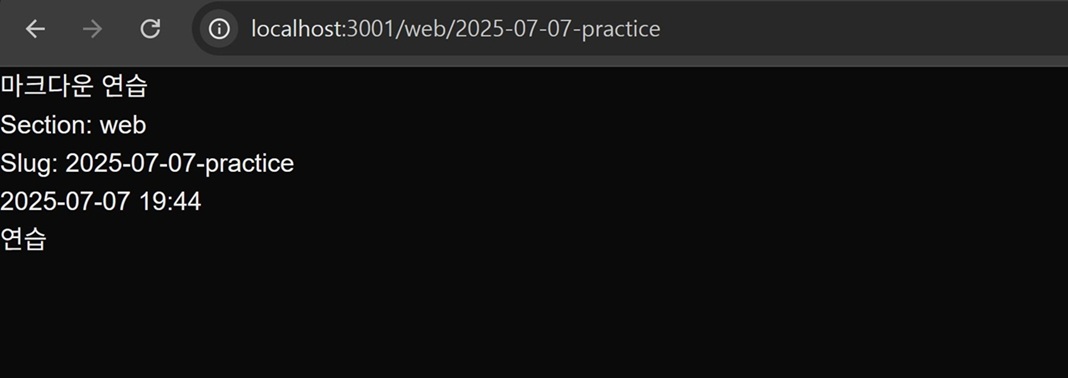 Figure 1. Markdown file content appearing correctly via dynamic routing
Conclusion#
From parsing Markdown data to rendering using dynamic routing, we have explored all the core features of a Next.js blog.
getStaticPaths and getStaticProps were somewhat unfamiliar at first, but after understanding
the Next.js mechanism of generating static files at build time, their roles became clear.
Now that the preparation is complete, it will be good to focus on UI improvements and adding additional features to gradually develop the blog further.